
Big E-Z Accounting User Guide
Top articles for help with Big E-Z Accounting for Google Sheets.
How It Works
Reports
Discover all of the reports you can generate using the Big E-Z Accounting system.
Balance Sheet
This report must be in balance. If it does NOT balance it could be for one of a couple of reasons:
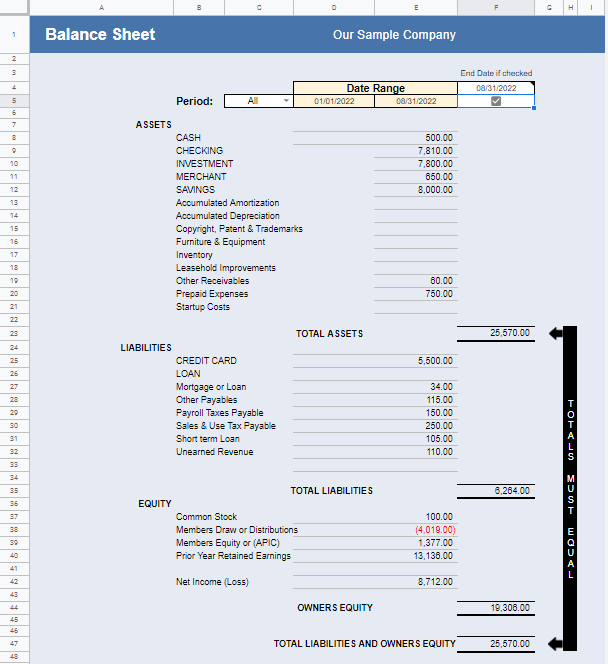
First check for any items that were NOT categorized. Go to Lookup / Find Errors > Uncategorized List and categorize any items listed there.
Second you may have entered only one part of a transfer that involves an ACCOUNT. This may happen if you do a manual transfer to an ACCOUNT set up for importing. Go to Lookup / Find Errors > Transfer List.
Budget
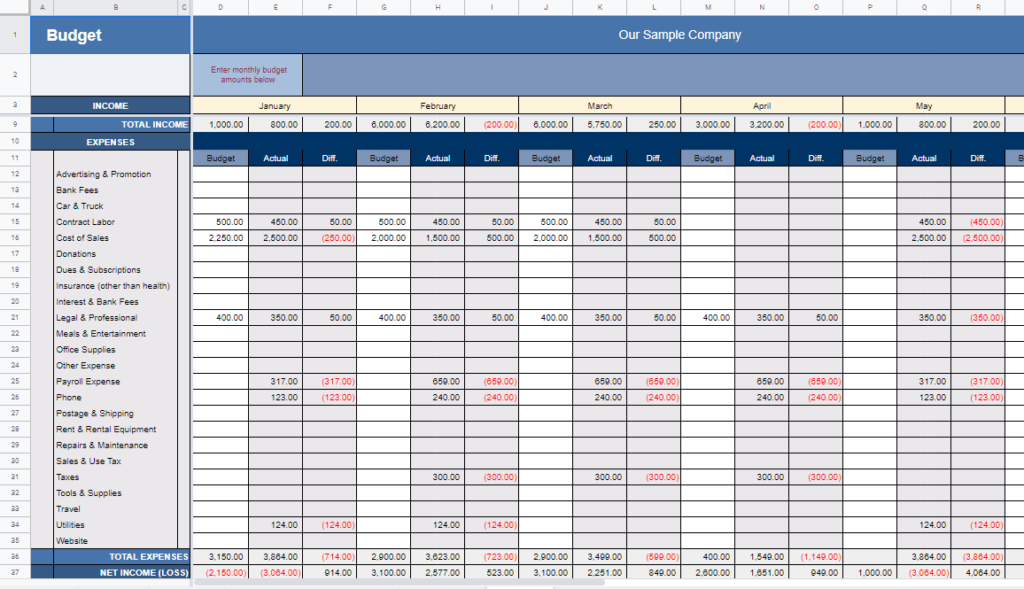
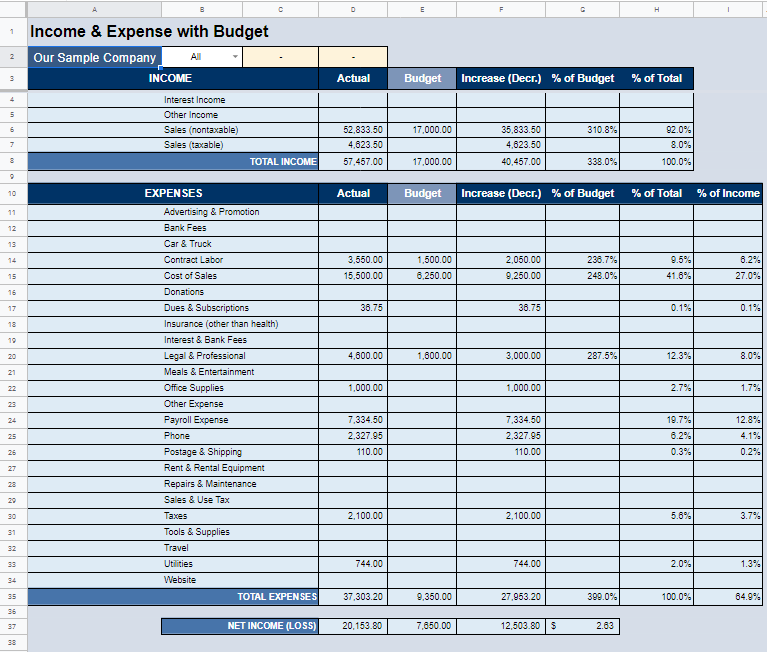
Using the Budget will allow you to view the difference between what you estimate you will spend with the actual amount spent.
Cash Management
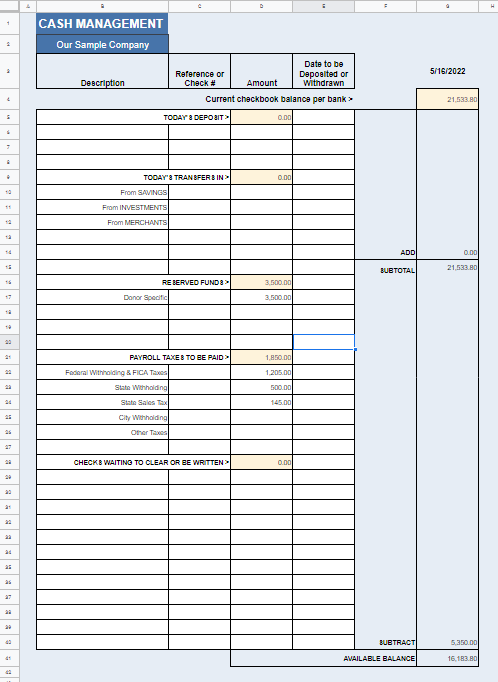
The Cash Management report is a manual report. It will help to guide and keep you from spending more than you should. This is very helpful for users that want to keep very close tabs on their money.
You can record amounts on this sheet that have not cleared the bank, keep tabs on money that is earmarked for other purposes (taxes, upcoming payroll, or large expenditures), and determine the actual available balance.
Category and Subcategory
Our Category & Subcategory report shows the year-to-date breakdown of all income and expense Categories, including Subcategories in date order.
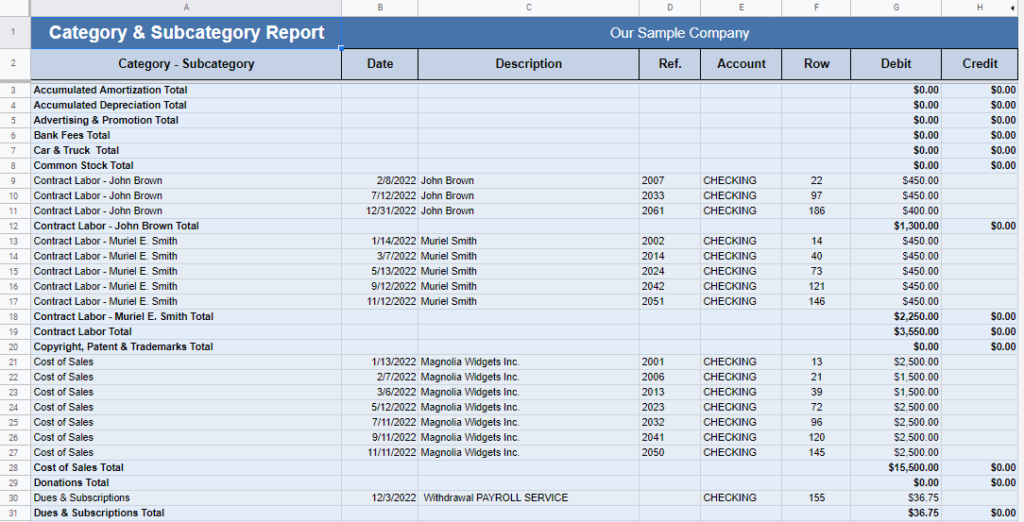
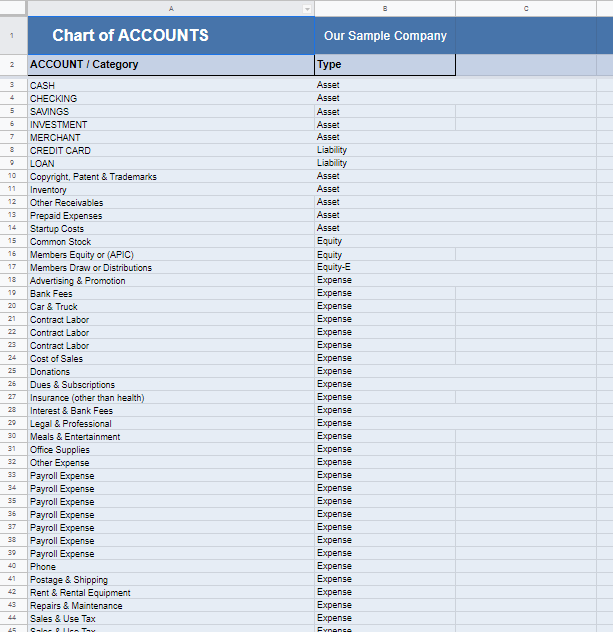
Chart of Accounts
Control Sheet
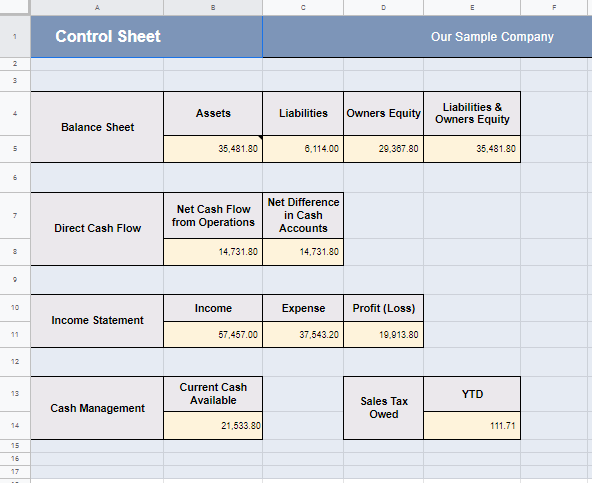
The Control Sheet allows you to check to see if your Balance Sheet and Trial Balance are in balance. If not, go to Lookup / Find Errors to locate ACCOUNT transfer errors and uncategorized transactions.
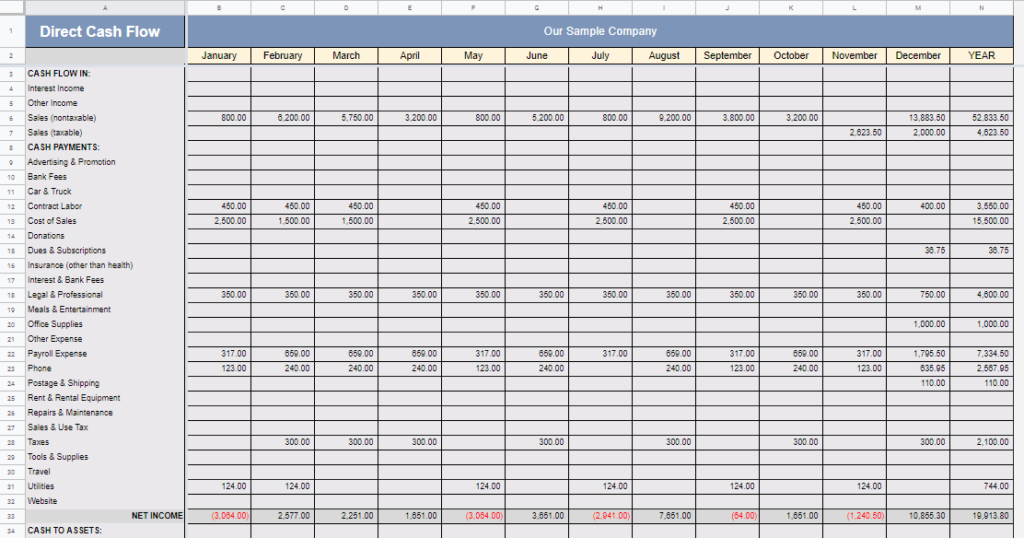
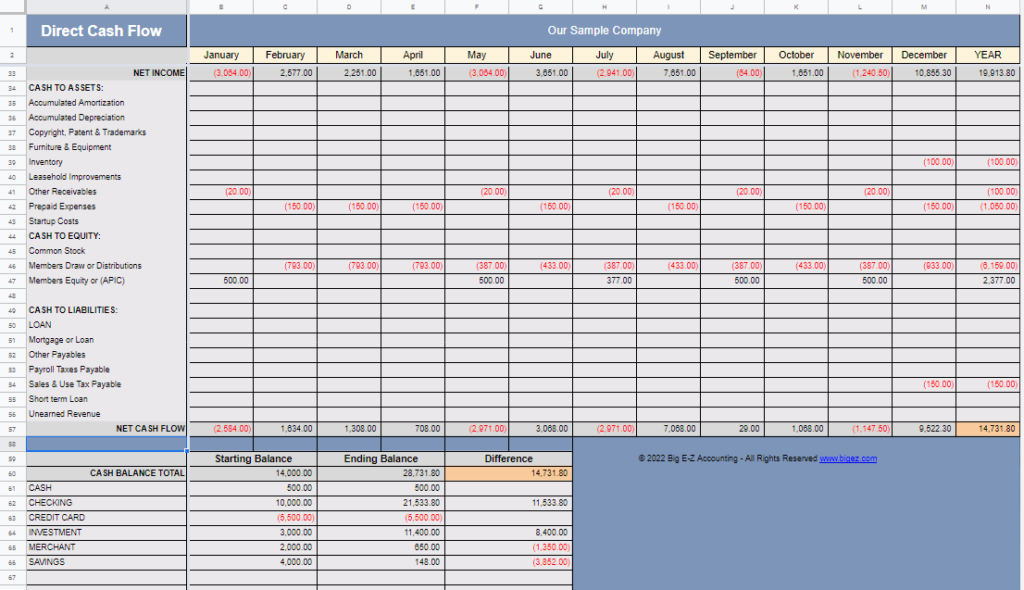
Direct Cash Flow
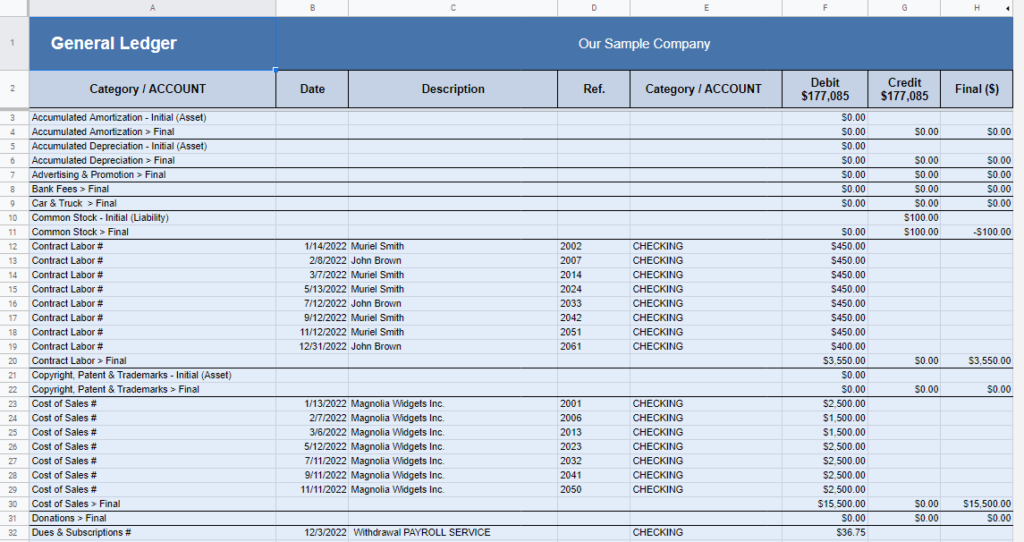
General Ledger
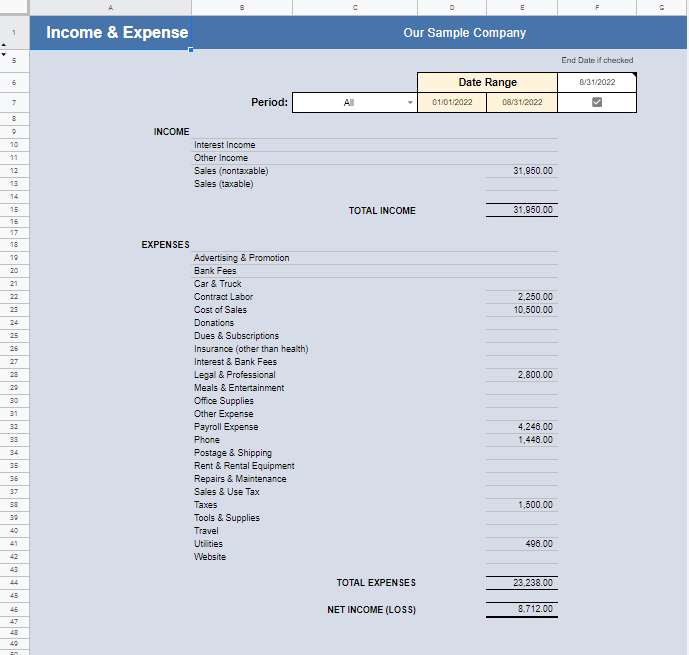
Income & Expense
Use the Lookup or Category & Subcategory report to see Subcategory details.
Income & Expense with Budget
Quarterly & Year-End Totals
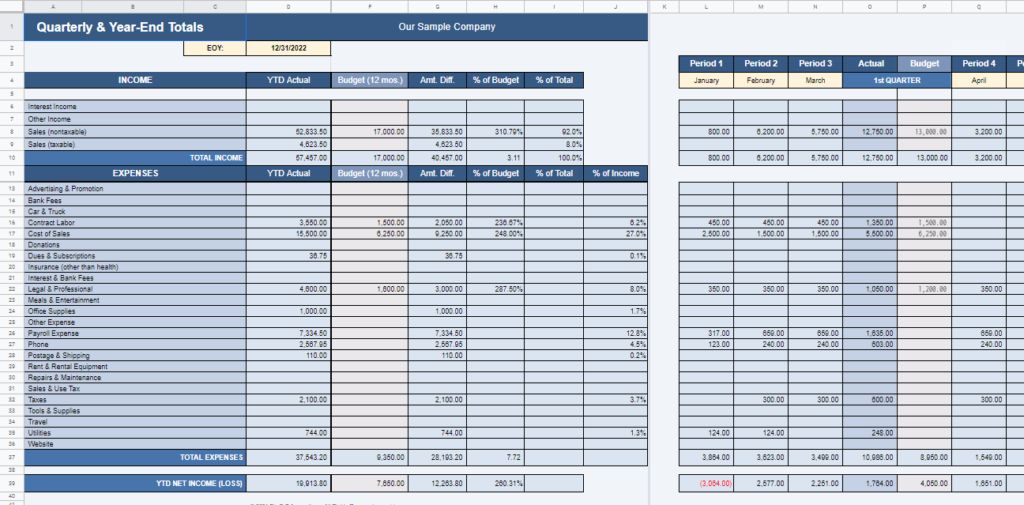
You can view your monthly, quarterly, and year-to-date totals vs. budget amounts on the Quarterly & Year-End Totals report, as well as percentages of budget, total, and income.
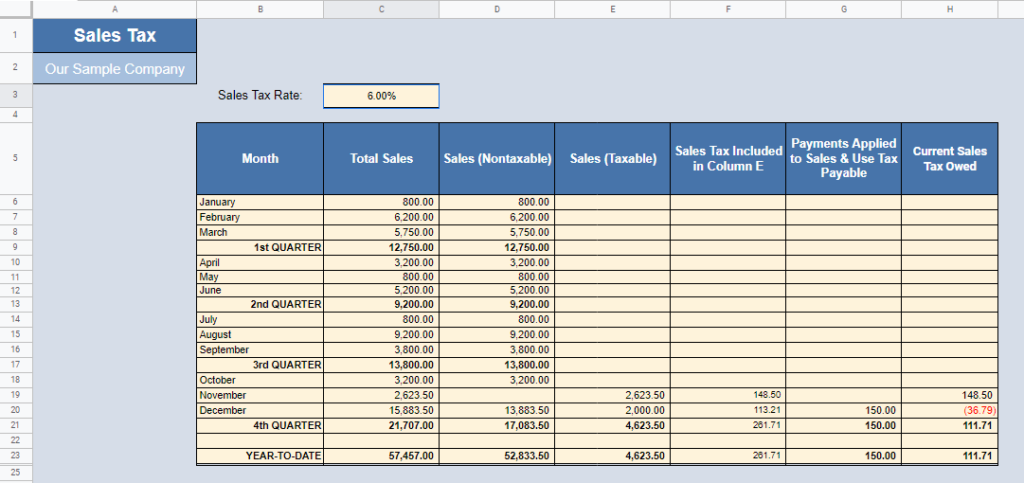
Sales Tax
Trial Balance
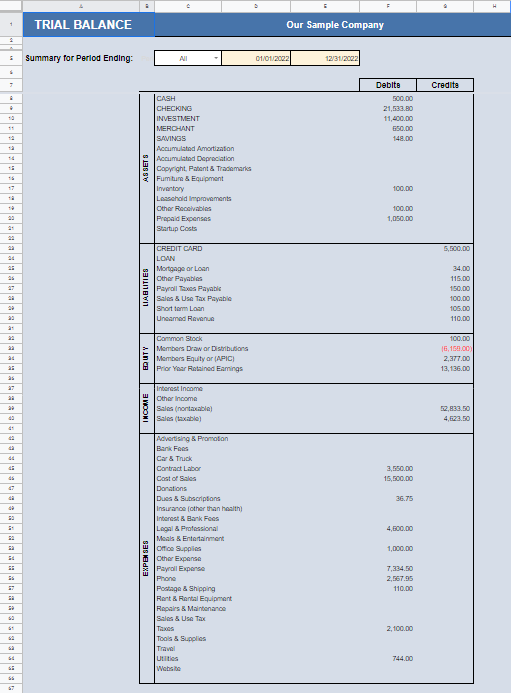
The total of all your debits in column F should equal the total of all your credits in column G, then you know your books are in balance. If it does NOT balance it could be for one of a couple of reasons:
First check for any items that were NOT categorized. Go to Lookup / Find Errors > Uncategorized List and categorize any items listed there.
Second you may have entered only one part of a transfer that involves an ACCOUNT. This may happen if you do a manual transfer to an ACCOUNT set up for importing. Go to Lookup / Find Errors > Transfer List.